Managing Multiple Phone Numbers
If you have added one or more phone numbers to your WapFlow account, you will see them listed when you access your dashboard. This guide will walk you through how to manage your phone numbers effectively.
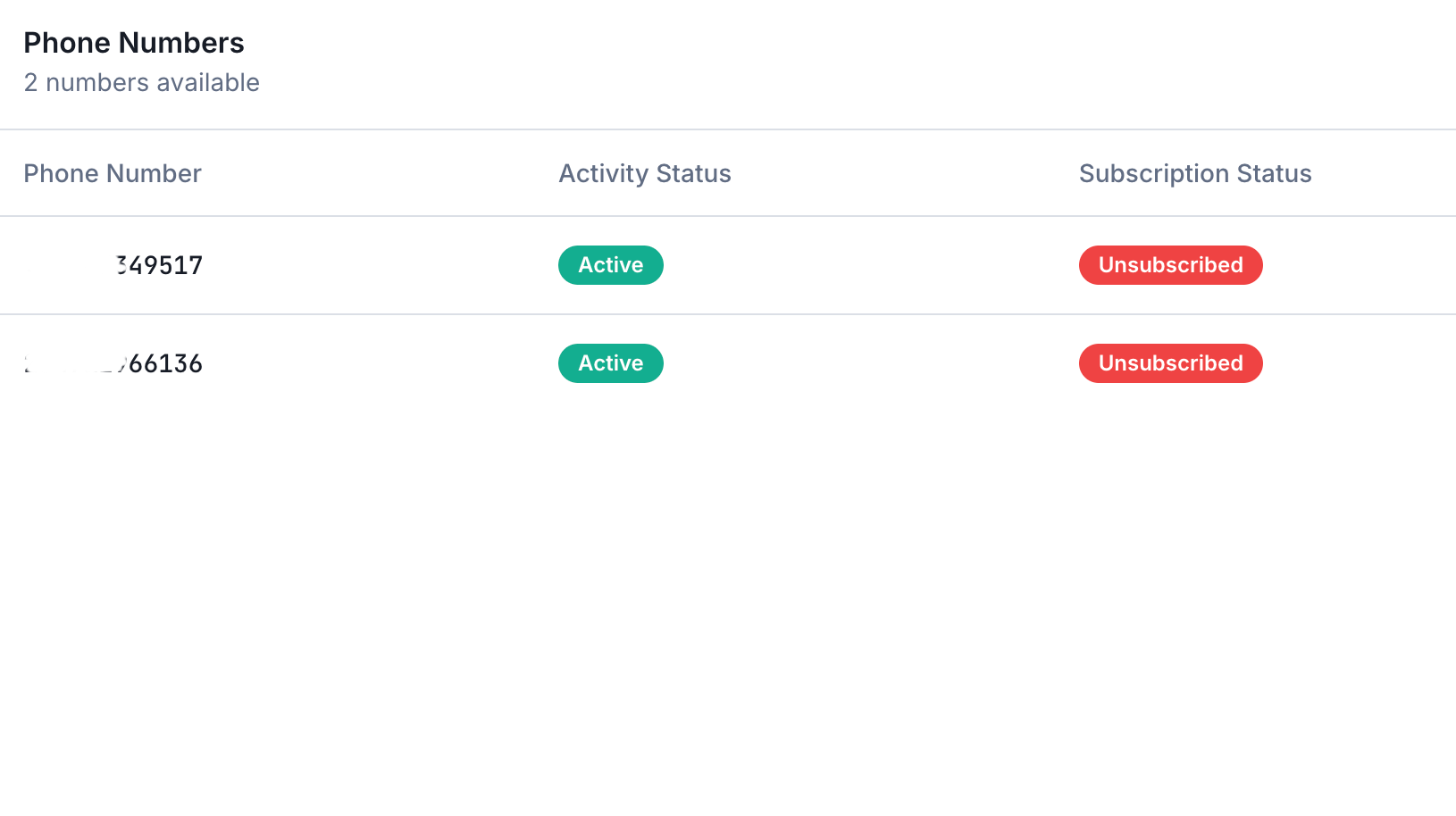
Managing a Phone Number
To manage a specific phone number, simply select it from the list. Once selected, you'll see a detailed view with 5 tabs that provide comprehensive management options:
- Overview - View device token and connection management
- Webhooks - Configure webhook endpoints
- Debugger - Test and debug webhook events in real-time
- Stats - Monitor API usage and performance
- Plan - Manage your subscription
Let's explore each tab in detail:
Overview Tab
The Overview tab is your central hub for phone number management. Here you'll find:
Device Token
Your device token is displayed prominently in this tab. This token is essential for making WhatsApp API calls. You can:
- Copy the token to use in your API requests
- View token details and usage information
- Keep your token secure - treat it like a password
Use this device token as the Bearer token in the Authorization header when making API calls to WapFlow endpoints.
Reconnect Phone Number
You can reconnect your phone number at any time from the Overview tab. This is useful if:
- Your WhatsApp connection has been lost
- You want to link to a different device
- You're experiencing connectivity issues
The reconnect process is straightforward and can be done with either a QR code or connection code, just like the initial setup.
Delete Phone Number
If your phone number is not subscribed (on trial/sandbox or unsubscribed), you have the option to delete it at any time. Simply click the delete button in the Danger Zone section of the Overview tab.
Webhooks Tab
The Webhooks tab allows you to configure and update your webhook endpoints to receive WhatsApp events in real-time.
Message Webhooks
Configure a webhook URL to receive incoming messages and message events. This enables your application to:
- Receive messages sent to your WhatsApp number
- Process incoming message events
- Handle message status updates
Status Webhooks
Set up a separate webhook URL for status updates. This will notify your application about:
- Message delivery status
- Message read receipts
- Message delivery confirmations
Both webhook URLs can be updated independently, and you can also configure webhook secrets for additional security.
Stats Tab
The Stats tab provides valuable insights into your API usage. Here you can see:
- Past Week - Number of API calls made in the last 7 days
- Past Month - Number of API calls made in the last 30 days
- Total - Total API calls since the phone number was added
This information helps you: - Monitor your API usage patterns - Track your subscription limits - Plan for scaling your WhatsApp integration
Plan Tab
The Plan tab is where you manage your subscription for the phone number. Here you can:
Subscribe
If your phone number is on a trial/sandbox plan or unsubscribed, you can subscribe to a paid plan directly from this tab. Choose between:
- Monthly billing
- Yearly billing (often with savings)
Upgrade Plan
If you're already subscribed, you can upgrade to a higher tier plan with more features and API call limits.
Cancel Subscription
You can cancel your subscription at any time from the Plan tab. Your subscription will remain active until the end of the current billing period, after which the phone number will revert to trial/sandbox status.
Need Help?
If you need assistance managing your phone numbers, contact us via Email: info@wapflow.app or Chat With Us.