How to Connect Your First Phone Number
Oct 05, 2025
Congratulations on signing up with WapFlow! You're just moments away from integrating WhatsApp API into your application.
Connecting your first WhatsApp phone number to WapFlow is a simple process. This guide will walk you through the steps to get started.
Prerequisites
Before you begin, make sure you have:
- A WapFlow account (sign up if you haven't already)
- A WhatsApp-enabled phone number
- Access to your phone to scan QR codes or enter connection codes
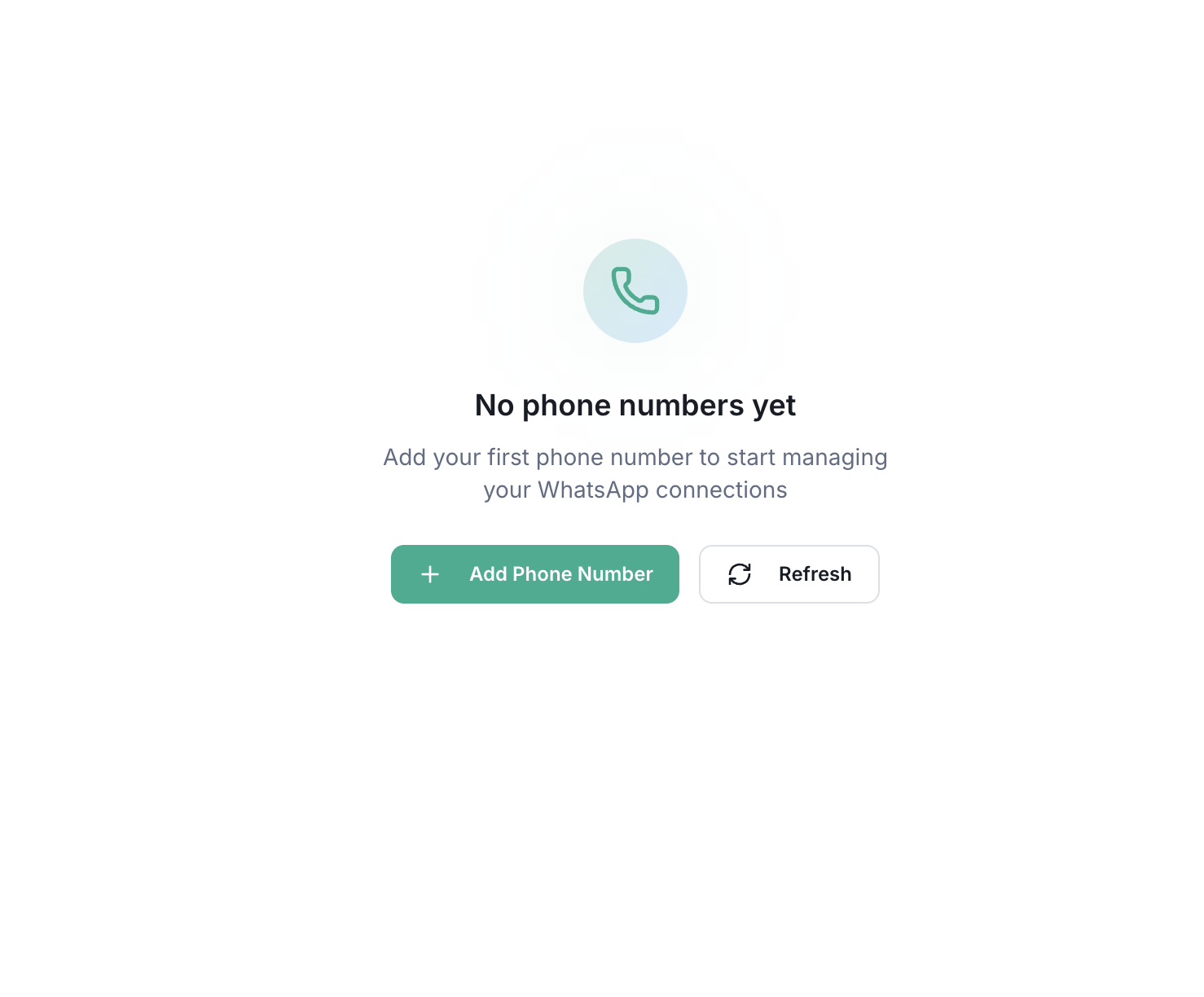
Step 1: Access the Dashboard
- Log in to your WapFlow account
- Navigate to the Dashboard from the main navigation
- Click the Add Phone Number button
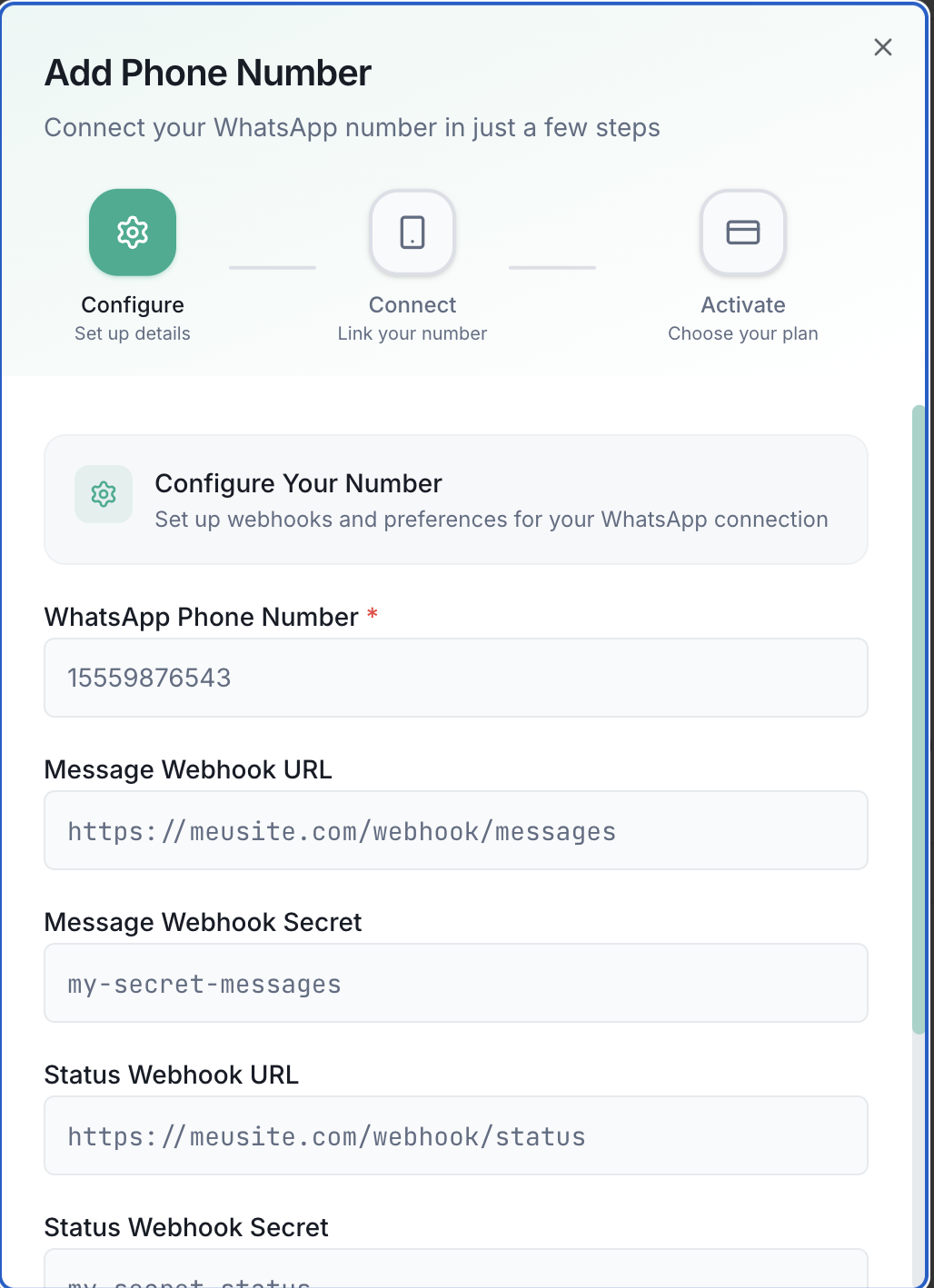
Step 2: Enter Phone Number Details
- Enter your WhatsApp phone number in the format provided (e.g., 15559876543)
- Optionally configure webhook URLs for receiving messages and status updates
- Click Continue to proceed
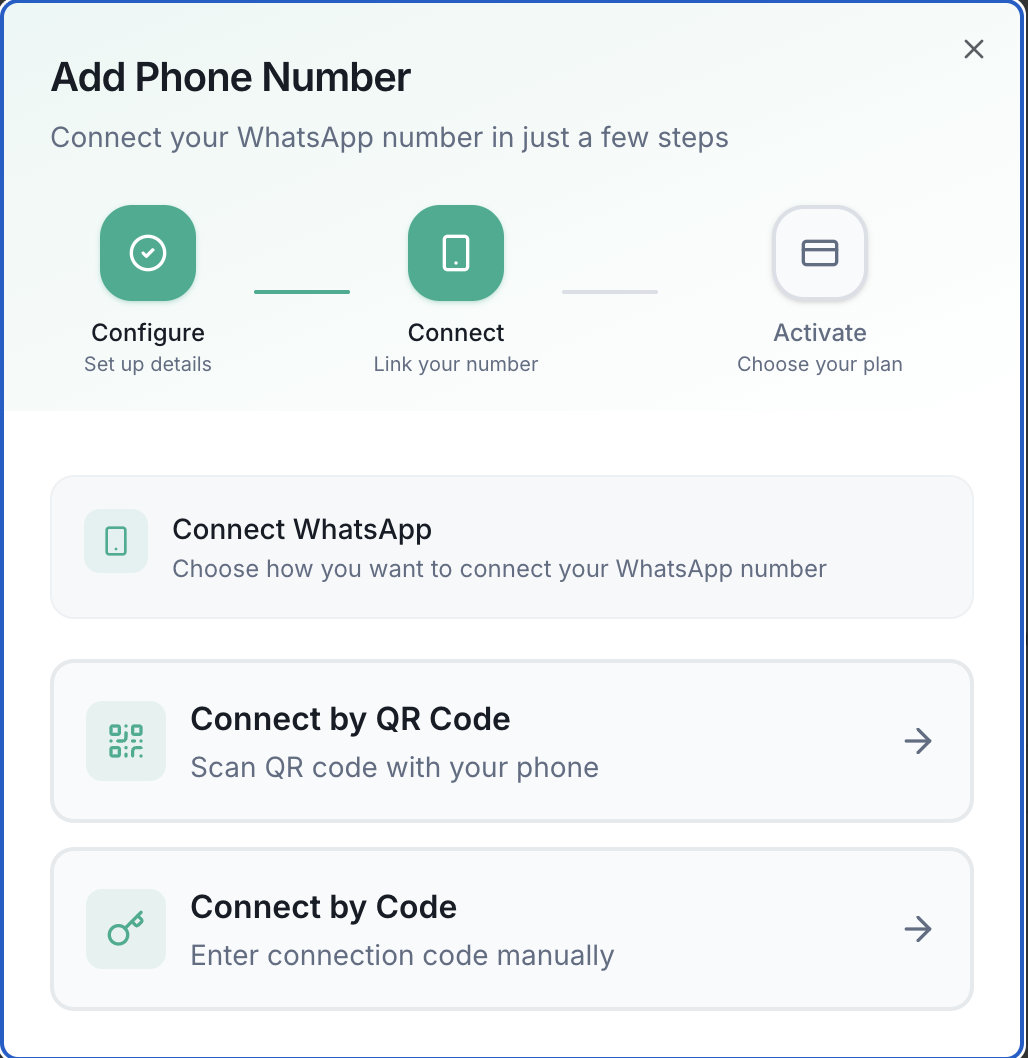
Step 3: Choose Connection Method
You have two options to connect your WhatsApp number:
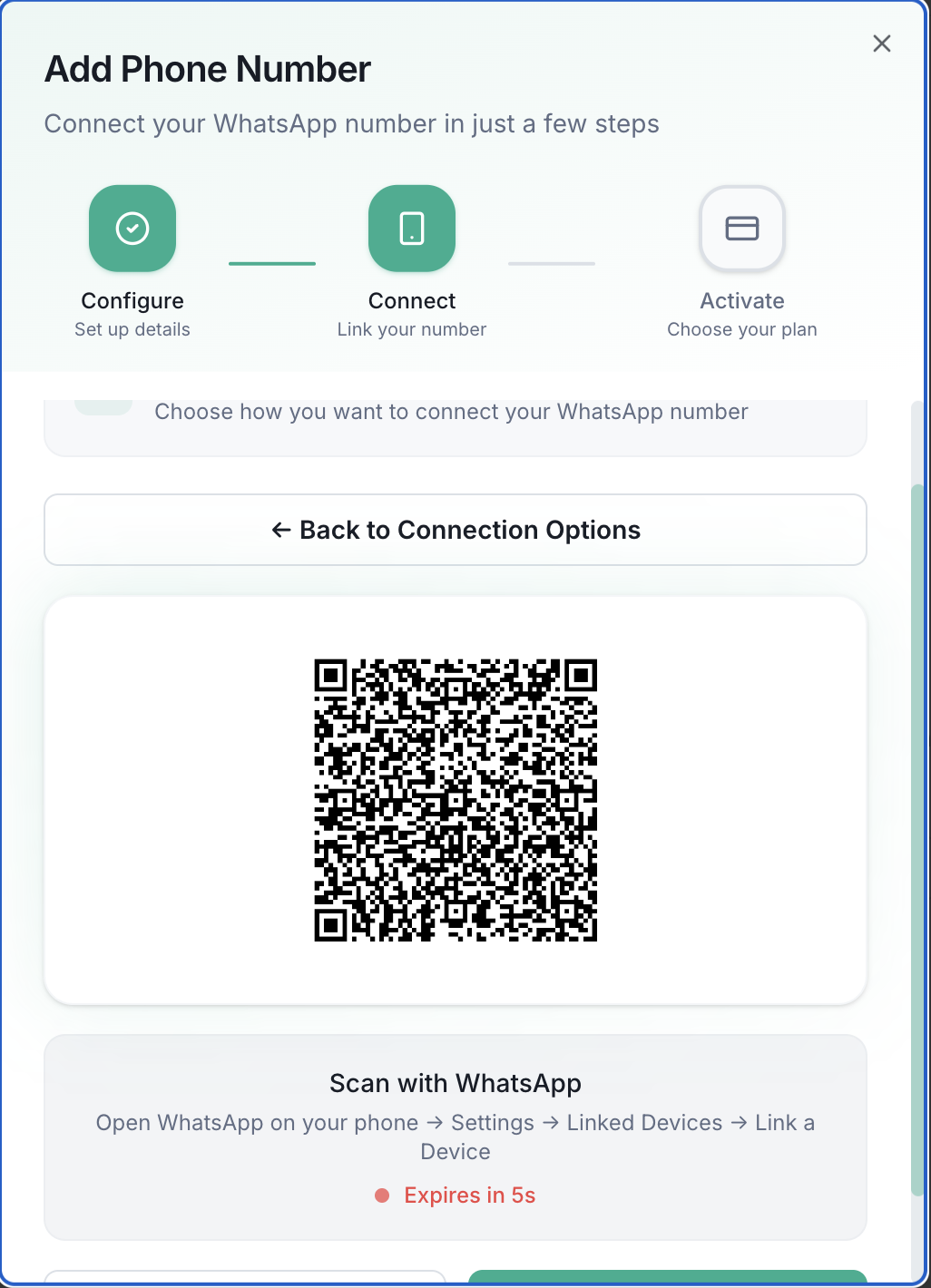
Option A: Connect with QR Code
- Click Generate QR Code
- Open WhatsApp on your phone
- Go to Settings → Linked Devices → Link a Device
- Scan the QR code displayed on your screen
- Wait for the connection to be established
- Click I've Scanned It to proceed
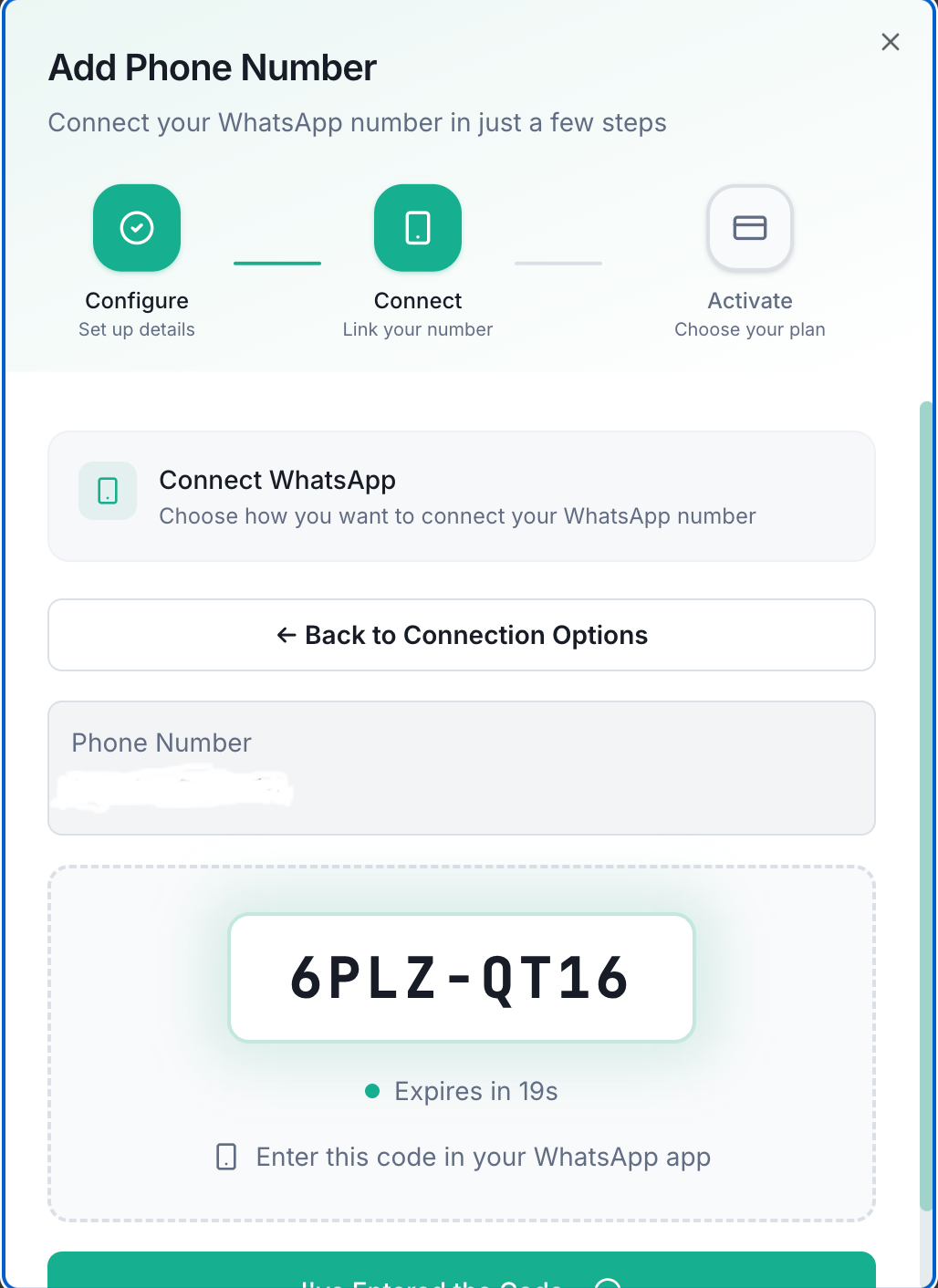
Option B: Connect with Code
- Click Connect with Code
- A connection code will be generated and displayed
- Open WhatsApp on your phone
- Go to Settings → Linked Devices → Link a Device
- Tap Link with phone number instead
- Enter the code shown on your screen
- Click I've Entered the Code to proceed
Step 4: Choose Your Plan
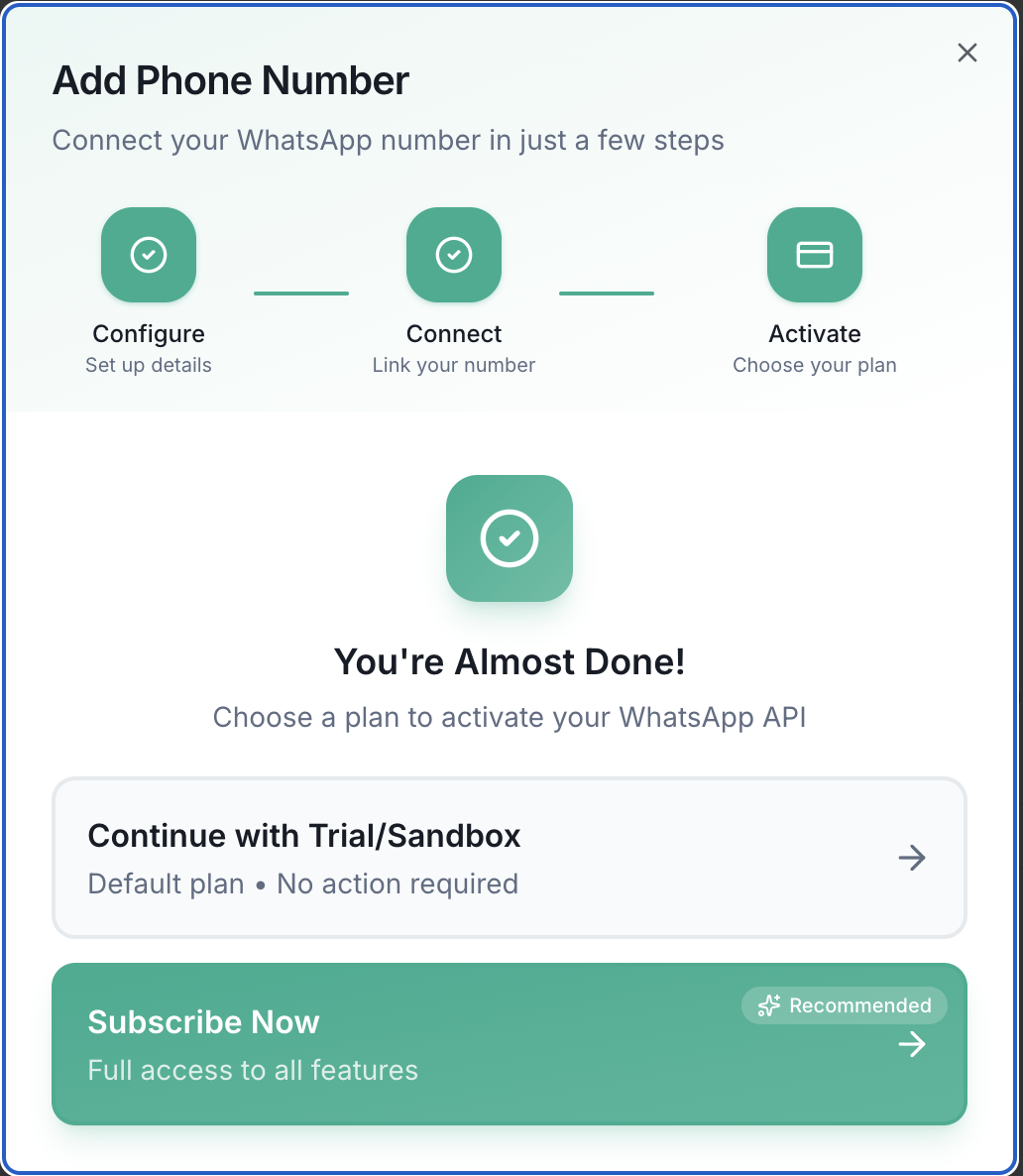
After successfully connecting your phone number, you'll be prompted to choose a plan:
- Trial/Sandbox: Free plan with up to 200 API calls per month
- Subscribe Now: Full access to all features with unlimited API calls
Next Steps
Once your phone number is connected:
- Configure webhooks to receive real-time notifications
- Start sending messages via the API
- Monitor your phone number status from the dashboard
- Explore the API documentation to integrate WhatsApp into your application
Troubleshooting
If you encounter any issues:
- Make sure your phone has an active internet connection
- Ensure WhatsApp is updated to the latest version
- Try disconnecting and reconnecting if the connection fails
Need Help?
If you're still having trouble connecting your phone number, don't hesitate to contact our support team. We're here to help you get started!
Contact us via Email: info@wapflow.app or Chat With Us.